

From AI SVG to React: A Developer Duck Worked Example
By PunkerIcon ·
Compare a freshly generated PNG with its 16-path, five-color SVG export, then download the files and use the SVG in a working React label.
The prompt, original PNG and exported SVG
On October 12, 2026, we generated a new developer duck through PunkerIcon’s image-to-SVG pipeline with this description:
“Rubber duck wearing coding glasses with laptop”
We selected Icon artwork, enabled color and left pixel art off. The generator expanded this description into its full icon prompt and requested one transparent image from gpt-image-2.5-sunburst at low quality. The generation record below includes that complete provider prompt and the actual settings, rather than just the short description. Our generation guide explains the workflow.
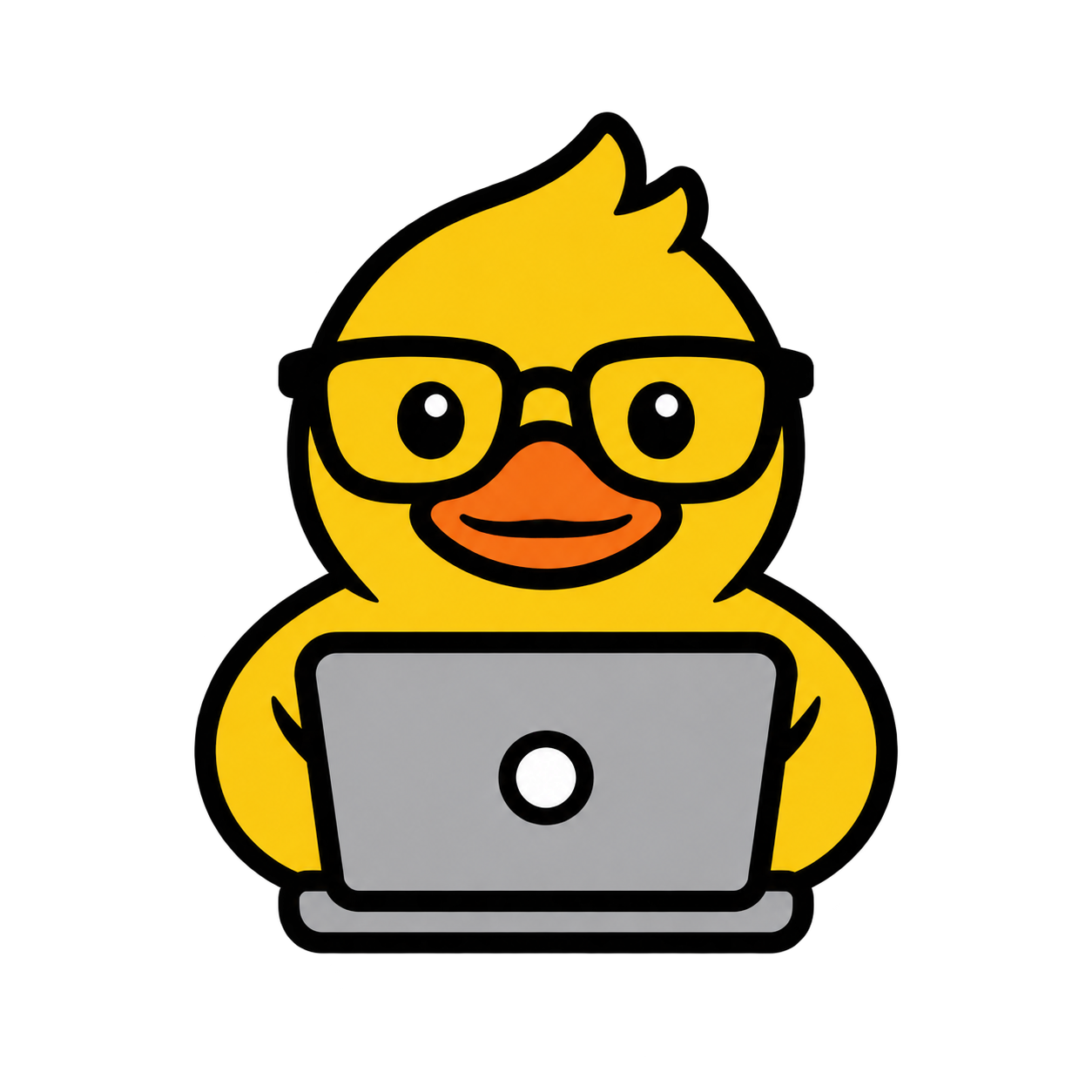
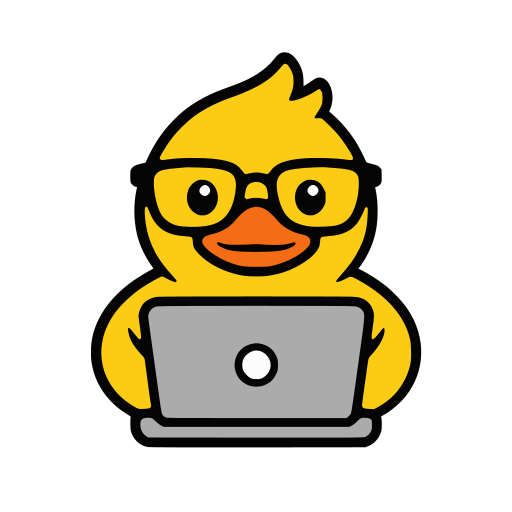
Download the complete SVG (13,152 bytes)Download the original PNG (1254 × 1254)Download the SVG’s PNG export (1024 × 1024)Download the generation record (JSON)
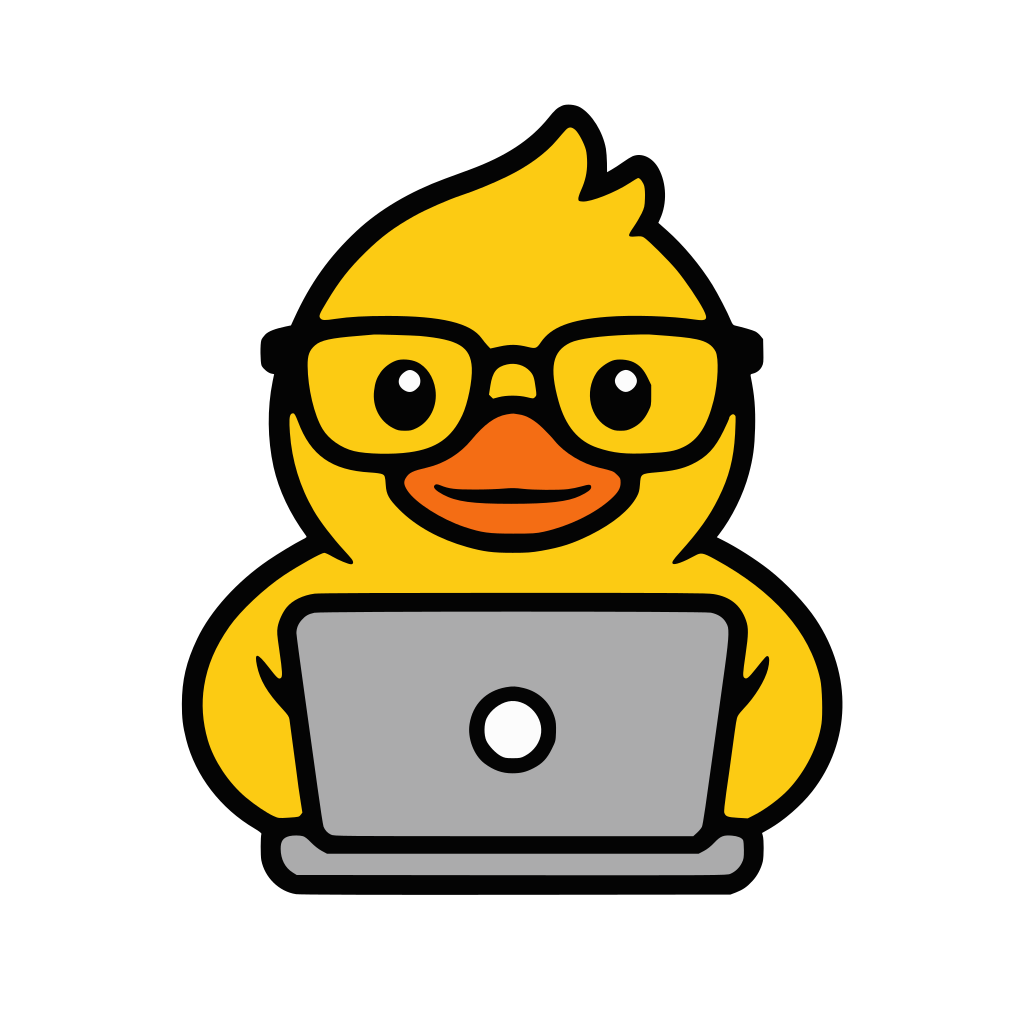
These are the original image and the actual conversion from this run. The duck, glasses and laptop survive, but conversion flattens the original’s soft yellow and gray shading into solid colors and changes some edge shapes. The SVG is a traced interpretation of the PNG, not a pixel-identical copy. Both files have transparent backgrounds; we show them on white so their dark contours stay visible.
What is inside this SVG?
Open the downloaded file in a text editor. It contains 16 <path> elements and five explicit fill colors: #040404, #ababac, #f46d14, #fccb13 and #fcfcfc. There is no embedded <image>. These are vector shapes, rather than a PNG wrapped in an SVG container. PunkerIcon generates raster artwork first and converts it into vector geometry.
<svg xmlns="http://www.w3.org/2000/svg"
  width="512px" height="512px"
  viewBox="0 0 1254.000000 1254.000000">
  <g transform="translate(0.000000,1254.000000) scale(0.100000,-0.100000)">
    <!-- The downloadable file contains all 16 filled paths here. -->
  </g>
</svg>
This excerpt shows the canvas and group only; download the complete file for the path data. Keep both the viewBox and the group transform: its paths use a larger coordinate scale and an inverted vertical axis. Replacing the viewBox with 0 0 24 24 would crop the artwork rather than make a 24-pixel icon.
The near-black contours and the yellow, orange, gray and near-white areas are filled paths. They are not adjustable line strokes. Removing fills or applying strokeWidth will not produce a thinner version of these contours. See the SVG inspection guide for checks to apply to other exports.
Put the real file into a React label
In a Next.js project, save the SVG at public/images/blog/developer-duck-worked-example.svg. The browser serves it at /images/blog/developer-duck-worked-example.svg. Then use this component; it needs no SVG loader or extra package.
export function DeveloperProjectLabel() {
  return (
    <span
      style={{
        display: "inline-flex",
        alignItems: "center",
        gap: 8,
        backgroundColor: "#fff",
        color: "#111827",
        padding: "8px 12px",
        borderRadius: 8,
      }}
    >
      <img
        src="/images/blog/developer-duck-worked-example.svg"
        width={32}
        height={32}
        alt=""
      />
      Developer project
    </span>
  );
}
Rendered React component
Developer projectThe component above uses the same file and markup as the code sample. The empty alt makes the image decorative because the text names the project. Width and height reserve its space. The white background and dark text keep this label readable in either theme; its palette is deliberately fixed. Changing the label’s text color leaves the duck’s five fills intact: an image element does not inherit currentColor into the SVG. Our React SVG guide covers inline components when you need to control the paths directly.
Does the detail survive at interface sizes?
All four samples use the identical SVG. At 24 and 32 pixels, the yellow duck and dark glasses are recognizable, but the eyes and laptop details are harder to distinguish. At 64 and 128 pixels, those details have more room. Vector scaling keeps the shapes sharp; it cannot make a detailed drawing as legible as a simple interface symbol.
Use this export as a project illustration or larger avatar, and keep accompanying text in compact controls. The white sample backgrounds also keep its dark contours visible. Check your own surface colors and spacing before placing it in a dark interface.
To try a simpler variant, open Studio and describe fewer details, then inspect the new export at its intended size. The prompt guides the result; it does not guarantee identical geometry, colors or readability on the next run.