

How to Generate SVG Icons with AI

To generate an SVG icon with AI, describe your subject, choose a style and color mode, and generate the artwork in PunkerIcon Studio. Download the SVG, then check its shapes and appearance at small sizes before using it in your app or design. PunkerIcon generates PNG artwork first and converts it into vector shapes; the steps and examples below explain the workflow and what to review.
Why AI for Icon Generation?
- Traditional process: Manual design in Illustrator or browsing massive icon libraries
- Pain points: Time-consuming, inconsistent styles, limited options
- AI solves this by generating custom artwork based on your input; review its style and details before use
“Imagine typing ‘rocket icon with blue flames’ and getting an SVG icon in seconds. That's the magic of AI.”
Get Started: PunkerIcon's AI icon generator offers 3 free credit to try instantly, with 5 additional credits when you create an account—no credit card required to start generating custom SVG icons.
How It Works
Head to PunkerIcon Studio and follow these simple steps:
- Enter a descriptive prompt for your icon
- Select or type a style option (e.g., Solid, Outline, Pixel)
- Choose between black or colored for your icon palette
- Click “Generate Icon”, download SVG or PNG, and review the exported icon at the size you intend to use
PunkerIcon generates PNG artwork first. Solid and outline icons are traced into vector paths; colored icons are converted in separate color layers, and pixel icons use shapes from a normalized grid. Check the exported files before using them: conversion can change fine details. Our SVG inspection guide shows what to look for, and our React guide explains how to add a reviewed SVG to your app.
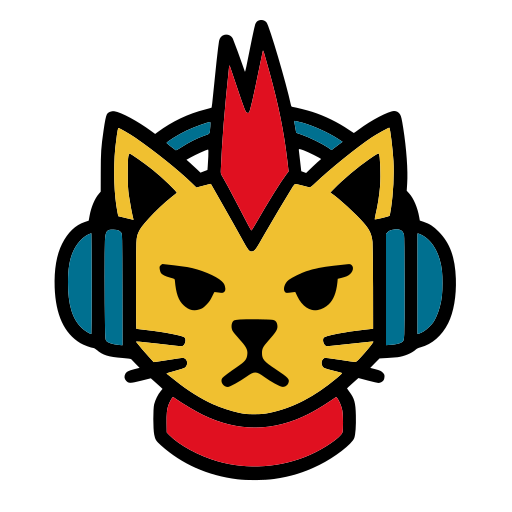
Example 1: Punk Cat
Prompt: “Punk cat with mohawk and headphones”
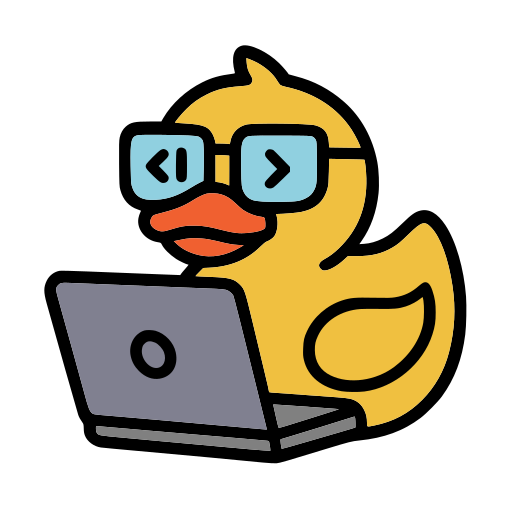
Example 2: Developer Duck
Prompt: “Rubber duck wearing coding glasses with laptop”
Example 3: Space Rocket
Prompt: “Rocket ship launching with colorful flames and stars”

When Should You Use AI Icons?
- Rapid prototyping / MVPs: Get your project up and running with custom icons in minutes
- UI/UX mockups: Perfect for wireframes and design presentations
- Presentation decks: Create unique visuals that stand out
- Mobile or web apps: Create custom icons and review their visual consistency together
- Social media / product logos: Design memorable brand symbols
Export Options & Use Cases
SVG Format
Useful for scaling and editing vector geometry. PunkerIcon converts generated raster artwork into SVG shapes; check the exported result at your intended size.
- Infinitely scalable
- File size depends on shape complexity
- Edit in design tools
- Best for web development
PNG Format
Ideal for quick use in websites, emails, and presentations.
- Ready to use immediately
- Works everywhere
- Transparent background
- Multiple sizes available
Drop into: Figma, Sketch, Webflow, Adobe XD, Canva, or any other design tool
Review the exported SVG and PNG in your target design tool or app. Vector conversion can simplify colors or small details, and an icon that looks clear in a large preview may need cleanup for a compact interface.
Tips for Better Results
Be Specific with Your Prompts
The more detail you provide, the better your results. Include objects, actions, and style preferences.
✓ Good: “rocket launching with blue smoke trail, solid style”
✗ Too vague: “rocket”
Experiment with Variations
Don't settle for the first result. Run multiple prompts with slight differences to find the perfect icon. Try different styles and color descriptions, then compare the results at the size you intend to use. Each new generation uses credits.
Use Style Keywords
Guide the AI by including style descriptors in your prompt. Use terms like “minimalist”, “flat design”, “line art”, or “geometric” to guide the visual direction. Flat colors and broad shapes are better suited to vector conversion than gradients or textures.
Specify Color Preferences
Choose between Black for clean monochrome icons or Colored for vibrant designs. For colored icons, mention specific colors in your prompt like “blue and white”, “warm orange tones”, or “pastel pink”. Black icons work great for minimalist, professional designs.
Conclusion
AI icon generation technology is no longer the future. It's here, and it's lightning fast. Whether you're a designer looking to speed up your workflow or a developer who just needs SVG icons for a landing page, our online icon maker helps you skip the search and start creating custom icons instantly.
Stop wasting time browsing through thousands of generic icons or paying premium prices for custom icon design. With PunkerIcon's AI icon generator, you can explore custom artwork, review the result, and refine it for your project.
Ready to create your first AI-generated icon? Try Free (No Credit Card) →
Need more credits? View pricing plans or check out our FAQ